Wednesday, June 6, 2018


Batch script

Batch Scripts are stored in simple text files containing lines with commands that get executed in sequence, one after the other. Scripting is a way by which one can alleviate this necessity by automating these command sequences in order to make one’s life at the shell easier and more productive. This tutorial discusses the basic functionalities of Batch Script along with relevant examples for easy understanding.
Batch scripts are stored in simple text files containing lines with commands that get executed in sequence, one after the other. These files have the special extension BAT or CMD. Files of this type are recognized and executed through an interface (sometimes called a shell) provided by a system file called the command interpreter. On Windows systems, this interpreter is known as cmd.exe.

Functions
Ver functions
            This batch command shows the version of MS-DOS you are using
Syntax
            Ver
Example
           @echo off
            Ver
Output
Microsoft windowso[6.3.9600]

Assoc functions
            This is a batch command that associates an extension with a file type (FTYPE), displays existing associations, or deletes an association.
Syntax
            Assoc – file path
            Assoc | find “.doc” > file path
Example
@echo off
Assoc > c:\lists.txt
Assoc | find”.doc” > c:\lists.txt
Output
.doc=word.docment8
.dochtml= word html file

cd functions
This batch command helps in making changes to a different directory, or displays the current directory.
Syntax
Cd
Example
@echo off
Rem changing the program files
Cd\program files
Cd
Rem changing the path to program files
Output
C:\program files

Cls function
This batch command clears the screen.
Syntax
cls
Example
@echo off
Cls
The comment prompt screen will be cleared

Copy function
This batch command is used for copying files from one location to the other
Syntax
Copy[source][destination ]
Example
@echo off
Copy c:\list.txt c:\new folder
Output
All actions are performed as per the remarks in the batch file.

Del functions
          This batch command deletes files and not directories.
Syntax
          Del[file name]
Example
          @echo off
          Del c:\lists.txt
Output
Delete the c directory file

Dir function
This batch command lists the contents of a directory.
Syntax
          Dir
Example
@echo off
Dir *.txt
Output
Give the .txt extension file in dir

Date function
          This batch command help to find the system date.
Syntax
          Date
Example
          @echo off
          Date
Outputs
The current date will be displayed in the command prompt.

Echo function
          This batch command displays messages, or turns command echoing on or off.
Syntax
Echo ”string”
Example
Echo “hello world”
Output
Hello world

Exit function
this batch command exits the DOS console.
Syntax
          Exit
Example
@echo off
Echo “hello world”
Exit
Output
The batch file will terminate and the command prompt window will close.

Md functions
          This batch command creates a new directory in the current location.
Syntax
          Md[directory name]
Example
@echo off
Md newfolder
Cd new folder
Outputs
C:\new folder

Move function
          This batch command moves files or directories between directories.
Syntax
           Move[source][destination]
Example
@echo off
move c:\list.txt c:\new folder
Output
All actions are performed as per the remarks in the batch file.

Path function
This batch command displays or sets the path variable.
Syntax
          Path
Example
          @echo off
          Echo%path%
Output
The value of the path variable will be displayed in the command prompt.
Pause function
          This batch command prompts the user and waits for a line of input to be entered.
Syntax
          Pause
Example
          @echo off
          Pause
Output
The command prompt will show the message “Press any key to continue….” to the user and wait for the user’s input.

Prompt function
          This batch command can be used to change or reset the cmd.exe prompt.
Syntax
          Prompt[newpromptname]
Example
@echo off
prompt myprompt$g
output
The prompt shown to the user will now be myprompt>

Rd function
          This batch command removes directories, but the directories need to be empty before they can be removed.
Syntax
          Rd [directory name]
Example
@echo off
Rd c:\newfolder
Output
All actions are performed as per the remarks in the batch file.

Ren function
          Renames files and directories
Syntax
          Ren[old file name][new file name]
Example
          @echo off
          Ren c:\list.txt c:newlist.txt
Output
the file lists.txt will be renamed to newlists.txt.

start function
          This batch command starts a program in new window, or opens a document
Syntax
          Start”program name”
Example
          @echo off
          Start notepad.exe
Output
When the batch file is executed, a new notepad windows will start.

Choice function
          This batch command provides a list of options to the user.
Syntax
          Choice /c [option] /m [message]
Example
          @echo off
          Echo “what is the file size”
          Echo “a:10mb”
          Echo “b:20mb”
          Choice /c ab /m “what is your option a , b ”
Output
What is the file system
A:10mb
B:20mb
What is your  option a, b


Batch script
Batch Scripts are stored in simple text files containing lines with commands that get executed in sequence, one after the other. Scripting is a way by which one can alleviate this necessity by automating these command sequences in order to make one’s life at the shell easier and more productive. This tutorial discusses the basic functionalities of Batch Script along with relevant examples for easy understanding.
Batch scripts are stored in simple text files containing lines with commands that get executed in sequence, one after the other. These files have the special extension BAT or CMD. Files of this type are recognized and executed through an interface (sometimes called a shell) provided by a system file called the command interpreter. On Windows systems, this interpreter is known as cmd.exe.
Functions
Ver functions
This batch command shows the version of MS-DOS you are using
Syntax
Ver
Example
@echo off
Ver
Output
Microsoft windowso[6.3.9600]

Assoc functions
This is a batch command that associates an extension with a file type (FTYPE), displays existing associations, or deletes an association.
Syntax
Assoc – file path
Assoc | find “.doc” > file path
Example
@echo off
Assoc > c:\lists.txt
Assoc | find”.doc” > c:\lists.txt
Output
.doc=word.docment8
.dochtml= word html file

cd functions
This batch command helps in making changes to a different directory, or displays the current directory.
Syntax
Cd
Example
@echo off
Rem changing the program files
Cd\program files
Cd
Rem changing the path to program files
Output
C:\program files

Cls function
This batch command clears the screen.
Syntax
cls
Example
@echo off
Cls
The comment prompt screen will be cleared

Copy function
This batch command is used for copying files from one location to the other
Syntax
Copy[source][destination ]
Example
@echo off
Copy c:\list.txt c:\new folder
Output
All actions are performed as per the remarks in the batch file.

Del functions
          This batch command deletes files and not directories.
Syntax
          Del[file name]
Example
          @echo off
          Del c:\lists.txt
Output
Delete the c directory file

Dir function
This batch command lists the contents of a directory.
Syntax
          Dir
Example
@echo off
Dir *.txt
Output
Give the .txt extension file in dir

Date function
          This batch command help to find the system date.
Syntax
          Date
Example
          @echo off
          Date
Outputs
The current date will be displayed in the command prompt.

Echo function
          This batch command displays messages, or turns command echoing on or off.
Syntax
Echo ”string”
Example
Echo “hello world”
Output
Hello world

Exit function
this batch command exits the DOS console.
Syntax
          Exit
Example
@echo off
Echo “hello world”
Exit
Output
The batch file will terminate and the command prompt window will close.

Md functions
          This batch command creates a new directory in the current location.
Syntax
          Md[directory name]
Example
@echo off
Md newfolder
Cd new folder
Outputs
C:\new folder

Move function
          This batch command moves files or directories between directories.
Syntax
           Move[source][destination]
Example
@echo off
move c:\list.txt c:\new folder
Output
All actions are performed as per the remarks in the batch file.

Path function
This batch command displays or sets the path variable.
Syntax
          Path
Example
          @echo off
          Echo%path%
Output
The value of the path variable will be displayed in the command prompt.
Pause function
          This batch command prompts the user and waits for a line of input to be entered.
Syntax
          Pause
Example
          @echo off
          Pause
Output
The command prompt will show the message “Press any key to continue….” to the user and wait for the user’s input.

Prompt function
          This batch command can be used to change or reset the cmd.exe prompt.
Syntax
          Prompt[newpromptname]
Example
@echo off
prompt myprompt$g
output
The prompt shown to the user will now be myprompt>

Rd function
          This batch command removes directories, but the directories need to be empty before they can be removed.
Syntax
          Rd [directory name]
Example
@echo off
Rd c:\newfolder
Output
All actions are performed as per the remarks in the batch file.

Ren function
          Renames files and directories
Syntax
          Ren[old file name][new file name]
Example
          @echo off
          Ren c:\list.txt c:newlist.txt
Output
the file lists.txt will be renamed to newlists.txt.

start function
          This batch command starts a program in new window, or opens a document
Syntax
          Start”program name”
Example
          @echo off
          Start notepad.exe
Output
When the batch file is executed, a new notepad windows will start.

Choice function
          This batch command provides a list of options to the user.
Syntax
          Choice /c [option] /m [message]
Example
          @echo off
          Echo “what is the file size”
          Echo “a:10mb”
          Echo “b:20mb”
          Choice /c ab /m “what is your option a , b ”
Output
What is the file system
A:10mb
B:20mb
What is your  option a, b



Monday, April 9, 2018

errors in vba


Errors in vba
Syntax errors
Syntax errors, also called as parsing errors, occur at the interpretation time for VBScript. For example, the following line causes a syntax error because it is missing a closing parenthesis

Function error_handling_demo()
Dim x,y
X=”janusapps”
Y=ucase(x
End function

Run time errors
Runtime errors, also called exceptions, occur during execution, after interpretation.
For example, the following line causes a runtime error because here the syntax is correct but at runtime it is trying to call fnmultiply, which is a non-existing function.

Function run_time_error()
Dim x,y
X=5
Y=10
Z=fnmutiply(x,y)
End function

Logical errors
Logical errors can be the most difficult type of errors to track down. These errors are not the result of a syntax or runtime error. Instead, they occur when you make a mistake in the logic that drives your script and you do not get the result you expected.


formulas and page layout


Formulas and page layout 

formulas
We use Formula tab to insert functions, define the name, create the name range, review the formula, etc. In ribbon, Formulas tab has very important and most useful functions to make dynamic reports. Under the formulas tab we have 4 groups.


Function library
In Excel, we have 300+ functions and they are available in the formulas tab under the function library group. And there is no need to learn every formula for we can find formulas category wise such as:- Financial, Logical, Text, Date & Time, Lookup & Reference, Math & Trig, many more.


Define names
We use this option to define the name of a cell, range and the list of the already defined name can be viewed in Name manager and we can edit it if we want to change the range or cell reference of any defined name. Also, we can use the defined name in Formulas.


Formula auditing
This option helps us to identify the relation of formulas. By using Trace precedent, we get to know on which cell formula cell is based. Trace dependents are used to know if active cell is being used in any formula. When we use trace precedent and trace dependents the arrows get inserted automatically and, to remove the arrows, we use Remove Arrows. Show formula is a self-explained word; it is used to show the formula in the sheet. Error checking is used to check the error in the sheet. Evaluate formula option is used to evaluate the formula step by step.


calculation
If we want to switch the calculation from automatically to manually calculation and manually to automatically calculation, then we can do it by using the Calculation option. We use Calculate Now and Calculate Sheet option if automatic calculation is turned off.


Page layout
Many of the commands you'll use to prepare your workbook for printing and PDF export can be found on the Page Layout tab. These commands let you control the way your content will appear on a printed page, including the page orientation and margin size. Other page layout options, such as print titles and page breaks, can help make your workbook easier to read.

  
Themes
The first group that we will look at is the Themes group. Themes in Microsoft Excel provide a unique and professional look to your Workbooks.  They can do this by using an assortment of font styles, color schemes and graphical effects.


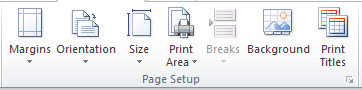
Page setup
we have many different choices for our Microsoft Excel worksheet layout . this tab contain themes , page setup ,scale to fit ,sheet option ,arrange.


Page orientation
Page orientation refers to how output is printed on the page. If you change the orientation, the onscreen page breaks adjust automatically to accommodate the new paper orientation.
Choose Page Layout » Page Setup » Orientation » Portrait or Landscape.
Portrait − Portrait to print tall pages (the default).
Landscape − Landscape to print wide pages. Landscape orientation is useful when you have a wide range that doesn’t fit on a vertically oriented page.
Page break
If you don’t want a row to print on a page by itself or you don't want a table header row to be the last line on a page. MS Excel gives you precise control over page breaks.
Insert Horizontal Page Break − For example, if you want row 14 to be the first row of a new page, select cell A14. Then choose Page Layout » Page Setup Group » Breaks » Insert Page Break. 


Background

Unfortunately, you cannot have a background image on your printouts. You may havenoticed the Page Layout » Page Setup » Background command. This button  displays a dialogue box that lets you select an image to display as a background. Placing this control among the other print-related commands is very misleading. Background images placed on a worksheet are never printed.


margins
Margins are the unprinted areas along the sides, top, and bottom of a printed page. All printed pages in MS Excel have the same margins. You can’t specify different margins for different pages.You can set margins by various ways as explained below.

•Choose Page Layout » Page Setup » Margins drop-down list, you can select Normal, Wide, Narrow,
Print titles
If your worksheet uses title headings, it's important to include these headings on each page of your printed worksheet. It would be difficult to read a printed workbook if the title headings appeared only on the first page. The Print Titles command allows you to select specific rows and columns to appear on each page.


Sheet options
MS Excel provides various sheet options for printing purpose like generally cell
gridlines aren’t printed. If you want your printout to include the gridlines, Choose Page Layout » SheetOptions group » Gridlines » Check Print.


Scale to fit
Use the Scale to Fit settings in Excel 2010 if you need to make a worksheet fit when you must get a few last rows or columns on a single page. You can use the Width, Height, and Scale options in the Scale to Fit group of the Page Layout tab to change these settings. These options are also available on the Page tab of the Page Setup dialog box.


Arrange
The last group in the Page Layout Tab is Arrange. This is primary used with pictures or images. Once you have such an element in your workbook, you can then use Arrange commands to position the item relative to your data. For now we will skip over this and come back to it when we go over the Insert Tab.


Data base function

Database function Daverage function      Averages the values in a field (column) of records in a list or database that match conditio...